
Guide
Optimize Outlook search with AI: How to find your emails at lightning speed
The Outlook search is not exactly user-friendly for many employees. We show how filters, search folders, operators and AI make it better.

Using Outlook search efficiently is the key to a more productive way of working. In this blog post, you will find out how you can improve your Outlook search and thus optimize your work processes. Whether you’re in the office or working from home, finding the right emails and information quickly saves time and increases efficiency. Read on to discover practical tips and tricks on how you can optimize Outlook search in your company.
Challenges of the Outlook search
Anyone who wants to optimize their Outlook search often faces several challenges:
- Users often don’t find the emails they are looking for because the search is too imprecise or returns too many irrelevant results.
- An email inbox that has grown over the years is also a reason for irrelevant results – on the other hand, you don’t want to delete important emails.
- Another problem is incomplete indexing, which means that emails cannot be searched correctly.
- The use of incorrect or unknown search operators can also lead to important messages being overlooked.
The basics of the Outlook search
Outlook offers a search function that can do more than just find keywords. The basic functions include:
These functions form the basis for using the Outlook search optimally and improving it further.
Tips and tricks to optimize the Outlook search
To make it as easy as possible for employees to get the most out of Outlook, we have put together some tips on how to make better use of the Outlook search.
1. Use precise search terms
Instead of entering general terms, specific keywords should be selected. This will minimize irrelevant results and help you find the emails you are looking for more quickly.
2. Use advanced filters
Use the advanced search options to refine your search. For example, you could use the following filters:
- Date
- Search for emails from a specific time period.
- Sender
- Filter for emails from important contacts.
- Attachments
- Find emails that contain certain file types.
3. Setting up search folders
Search folders can be used to automatically group emails according to certain criteria. This is particularly useful if you regularly search for similar information. A search folder in Outlook is a virtual folder that automatically displays emails based on defined search criteria without actually moving them.
For example, you could use a search folder to quickly access unread messages, emails from specific senders or messages with attachments. It is set up via “Folder” → “New search folder”, where you can select predefined options or define your own filters.
Search folders are particularly useful if you regularly search for certain emails with certain properties, as they are updated automatically, saving you the hassle of manual filtering.
4. Know search syntax
Outlook supports advanced search syntax, which helps you to make even more precise search queries. Examples of this are:
- “From:”
- to search for a specific sender.
- “Subject:”
- to find emails with a specific subject.
- “To:”
- to identify messages to a specific recipient.
Further operators are explained in the next section.
Important Outlook search operators for a more precise search
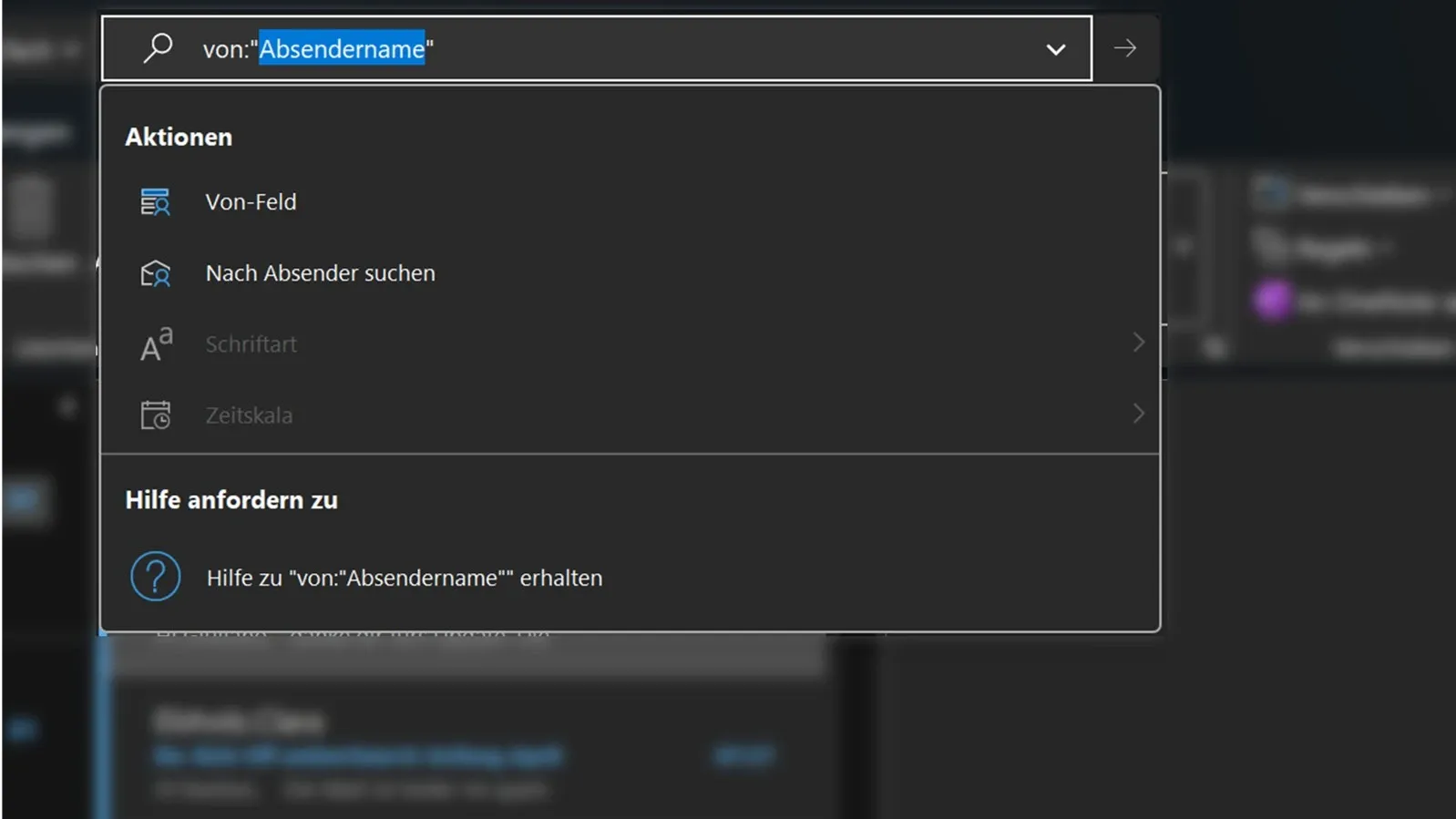
To optimize the Outlook search, you can use special search operators to narrow down your results:
| Operator | Example | Purpose |
|---|---|---|
| from: | from: "info@beispiel.com" | Senders |
| to: | to: "max@muster.de" | Recipients |
| subject: | subject: "Meeting" | Search for specific keywords in the subject |
| message: | message: "Project update" | Search the email text |
| attachments: | attachments:yes | Only shows emails with attachments |
| received: | received:>=01.01.2023 | Filter by date |
| size: | size:>50000 | Filter by size |
| category: | category: "Important" | Filter by categories |
from:
- Example
- from: "info@beispiel.com"
- Purpose
- Senders
to:
- Example
- to: "max@muster.de"
- Purpose
- Recipients
subject:
- Example
- subject: "Meeting"
- Purpose
- Search for specific keywords in the subject
message:
- Example
- message: "Project update"
- Purpose
- Search the email text
attachments:
- Example
- attachments:yes
- Purpose
- Only shows emails with attachments
received:
- Example
- received:>=01.01.2023
- Purpose
- Filter by date
size:
- Example
- size:>50000
- Purpose
- Filter by size
category:
- Example
- category: "Important"
- Purpose
- Filter by categories
You can also combine multiple search criteria with AND, OR and NOT. These operators make the Outlook search more efficient so that you can quickly find exactly the emails you need.
Avoid common mistakes in the Outlook search
Even the best tools can become inefficient due to small errors in the application. Here are some common Outlook search pitfalls and how to avoid them:
By avoiding these errors, you can optimize your Outlook search and thus significantly increase your efficiency in your day-to-day work.
AI search in Outlook | Advanced search functions
Despite these tips, the Outlook search is still based on a keyword-based search. If you don’t “hit” the right keyword, it becomes very difficult to find the right email. This is exactly where AI can help to find emails much faster.
For an AI-based search in Outlook, you need an add-on such as amber – an enterprise search solution for companies. A solution like amber builds its own index and searches it with AI models to quickly take relevant data into account. The advantage of this is that it searches at a semantic level – i.e. at a level of meaning – and not just for keywords. Watch this video to get a feel for how an AI can make all your business know-how accessible:
AI tools like amber additionally allow employees to chat with emails and have answers based on internal knowledge or summaries written automatically. With a correctly set up enterprise search, not only information from Outlook, but also from other data sources – such as drives, Teams or SharePoint – is taken into account.
Would you like to find out how to implement an AI search in Outlook? Then let’s get in touch now. We’ll be happy to help you.
Frequently asked questions about Outlook search
Why doesn’t Outlook search find my emails?
Often the search is too imprecise or returns too many irrelevant results, for example in an inbox that has grown over the years. Other reasons are incomplete indexing and incorrect or unknown search operators.
What is a search folder in Outlook?
A search folder is a virtual folder that automatically displays emails based on defined search criteria without actually moving them. You set it up via “Folder” → “New search folder” and can select predefined options or define your own filters.
Which search operators does Outlook support?
Important ones include from:, to:, subject:, message:, attachments:yes, received:, size: and category:. You can combine multiple search criteria with AND, OR and NOT.
Which mistakes should I avoid in the Outlook search?
Avoid overly general search terms, always use the advanced filters and make sure the Outlook database is regularly updated and indexed.
How does AI help with searching in Outlook?
The Outlook search is based on keywords. An add-on such as amber builds its own index and searches it with AI models at a semantic level, i.e. by meaning. In addition, you can chat with emails and have answers or summaries written for you.